Premium customers: earn 20% a year on a 3-month Locked Savings plan. Limited availability. Learn more.


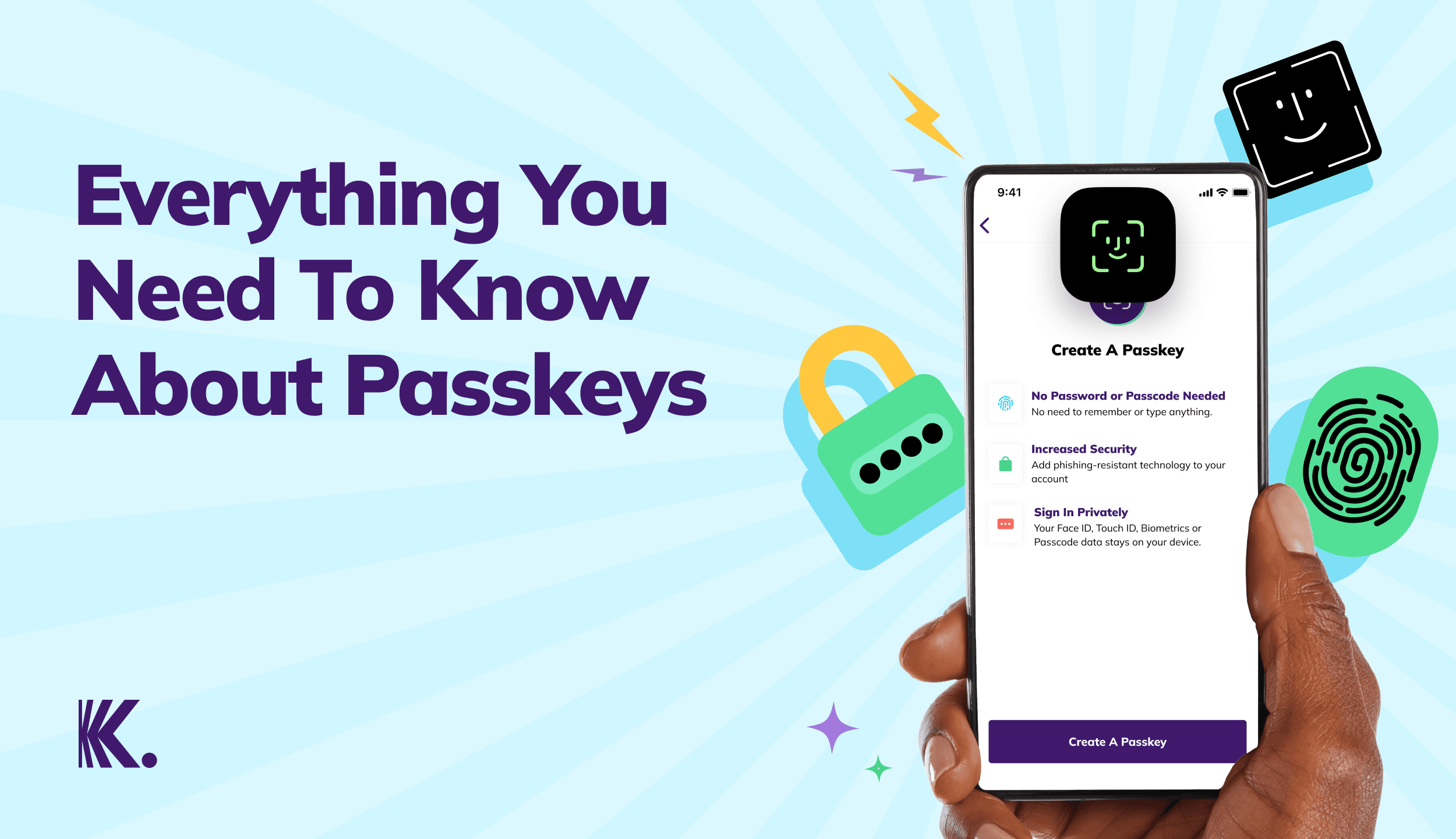
Passkeys: Here’s Everything You Need to Know About Passkeys
Discover passkeys: the secure, passwordless way to log in. Learn how they work, their benefits, and why they’re the future of online security.

Introduction
How many times have you tried signing in to your online accounts but couldn’t remember your password? All those random numbers, pet names, and birthdays you’ve memorised are exhausting. Besides, passwords can be guessed or stolen, leaving you vulnerable to scams.
This is where passkeys come in. They’re a simpler, more secure way to sign in to your account without passwords.
What are Passkeys?
Passkeys are a new way to sign in to your accounts without using passwords. Think of them as a smarter, safer alternative to passwords.
They work on computers and smartphones, allowing you to securely sign in to your accounts using your fingerprint, face scan, or device PIN – no need to remember different passwords for different websites or apps.
With passkeys, you never have to write down, share, or cram passwords. This makes them far less vulnerable to hacking attempts that typically target password-based sign-ins.
Passkeys are a big step forward in online security. They confirm that you have your device and you’re the person accessing your account.
How Do Passkeys Work?

When you create an account using a passkey, your phone or computer will generate two unique, secret keys using something that is unique to you – your fingerprint or Face ID.
The two keys are:
- A public key which is shared with the website or app.
- A private key which is stored in your device’s password manager.
The next time you try to sign in, your device will use your fingerprint, Face ID, or your device PIN to confirm it’s really you by interacting with the passkey in your password manager and securely verifying your identity on the website or app. What makes passkeys better? They aren’t tied to any specific website and your data isn’t stored in the cloud, making it much harder for hackers to steal your personal information.
The Evolution of Passkeys
The idea of using something unique about you to prove your identity has been around for centuries!
- 500 BC: The Babylonians used fingerprints on clay tablets.
- 1800s: A Frenchman, Alphonse Bertillon, introduced body measurements to identify criminals.
While the term passkey is relatively new, the push to move beyond passwords has been in progress for years. Early security methods, like smart cards and security tokens, paved the way for modern passkeys, but they weren’t always user-friendly. That changed in 2012, when companies like PayPal and Lenovo teamed up to form the FIDO (Fast IDentity Online) Alliance- a group committed to eliminating passwords altogether.
Key Moments in Passkey Development
- 2013: Apple launched Touch ID, followed by Face ID, making biometric authentication widely accepted.
- 2021: Major tech companies adopted FIDO2 and WebAuthn, the key standards behind passkeys.
- Today: Passkeys are now available on multiple devices, making online security stronger and more accessible than ever.
Key Benefits of Using Passkeys
1. User Convenience: Passkeys eliminate the need to remember complex passwords by allowing users to authenticate through biometric methods or device-based verification.
2. Stronger Security: Passkeys uses biometric authentication such as fingerprint, face recognition, or device PIN for secure access. Passkeys are designed such that sensitive information is never stored on servers.
3. Inbuilt Multi-Factor Security: Uses a mix of what you have (device) and who you are (biometrics) for extra protection.
4. Enhanced Security: Passkeys improve security by employing public-private keys instead of traditional passwords. Unlike passwords, passkeys are unique to each user and device combination, making them phishing-resistant & difficult to exploit.
5. Multi-Device Access: Users can quickly log into accounts across various devices without needing to reset or recover forgotten passwords as passkeys easily sync across devices via cloud storage e.g. iCloud Keychain, Google Password Manager.
6. Faster Logins: According to Google, passkey users experience login times that are 50% faster than those using passwords, enhancing both the security and efficiency of their authentication processes.
7. Cost Savings for Businesses: Businesses save time and resources previously spent on training employees to create secure passwords and manage risks associated with password storage. Moreover, passkeys can enhance user satisfaction and customer retention because they’re more secure and convenient.
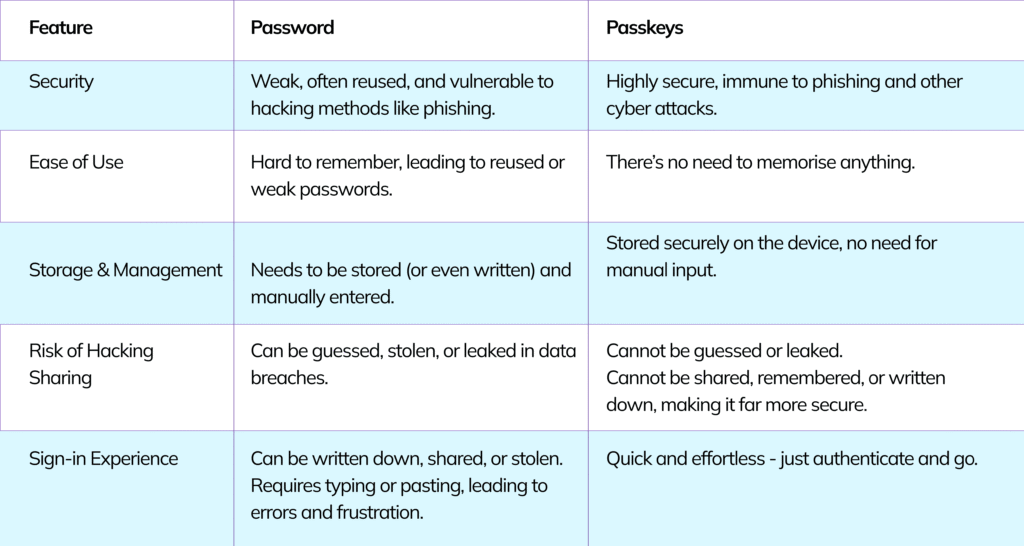
Passkeys vs. Passwords: Key Differences
Here are the key differences between passkeys and passwords;
How to Set Up Passkeys on Your Device
Setting up a passkey for your personal Kuda account or your Kuda Business account is quick and easy. Follow these steps based on your device:
On Android:
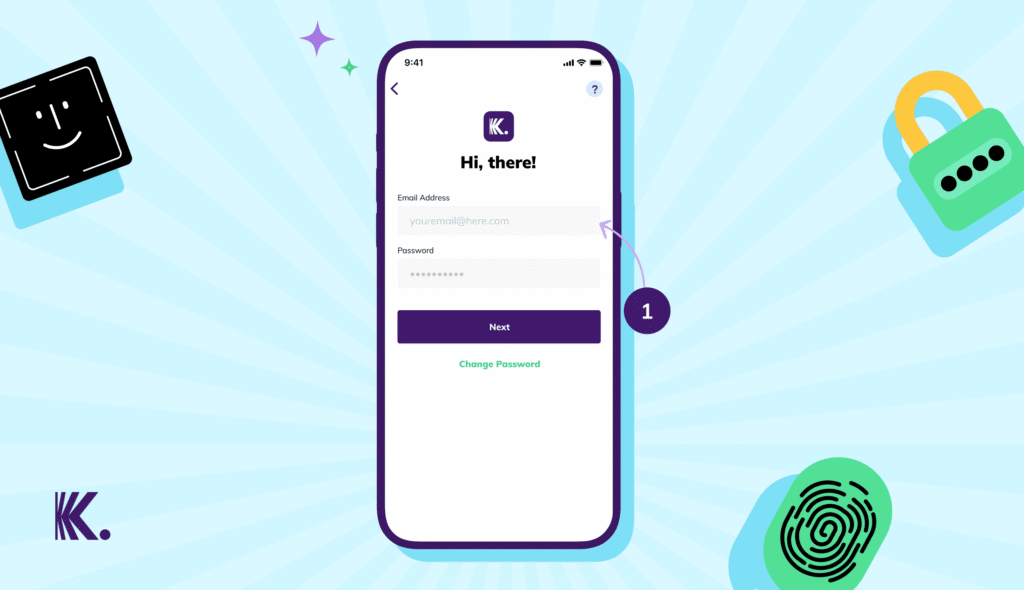
1. Open your Kuda app or your Kuda Business app, then type in the email address linked to your account.
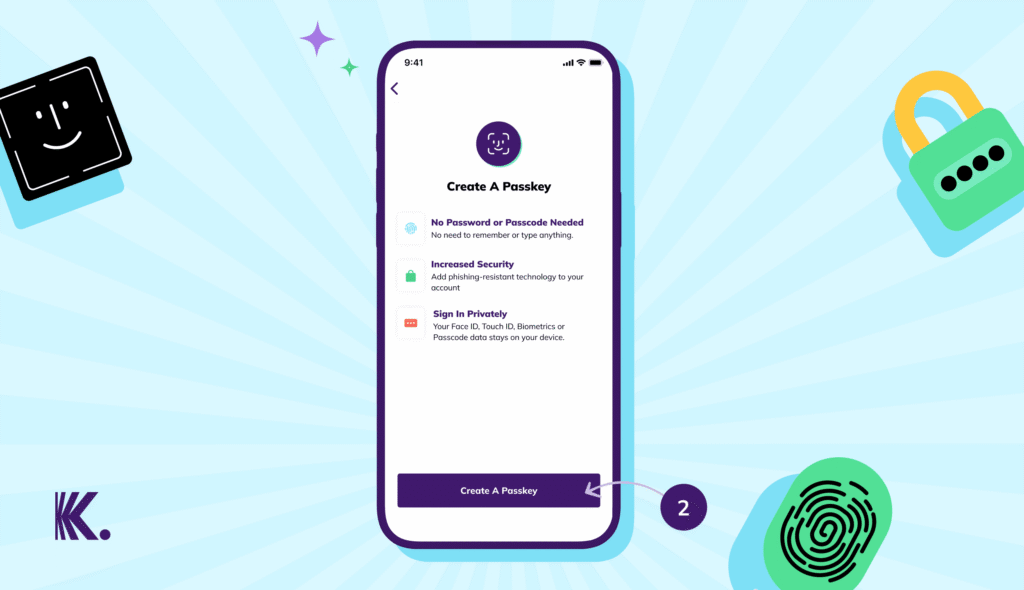
2. Tap Create A Passkey.
3. Choose either Biometrics (fingerprint or Face ID) or Device Screen Lock (PIN) as your sign-in option.
4. Confirm your sign-in option and your passkey will be stored securely in your Google Password Manager.
On iPhone:
1. Open your Kuda app or your Kuda Business app, then type in the email address linked to your account.
2. Tap Create A Passkey.
3. Choose Face ID or Touch ID as your sign-in option
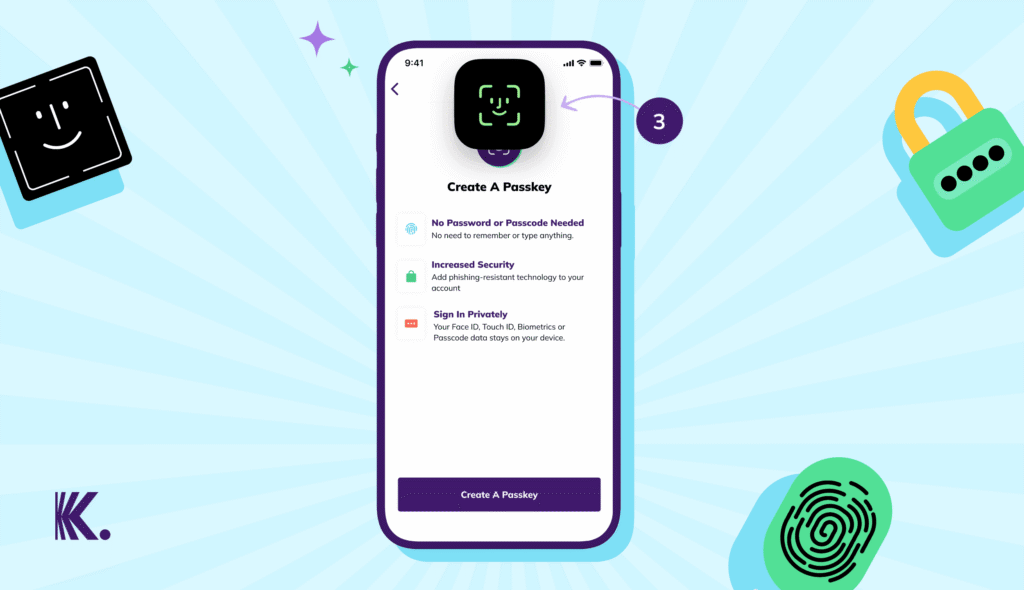
4. Confirm your sign in option and our passkey will be saved securely in your iCloud Keychain.
Are Passkeys the Future of Online Security?
The future of online security is looking bright and one thing is clear – it’ll be passwordless.
Passkeys are replacing passwords because they offer stronger security and a smoother user experience. We’re already seeing a shift toward widespread adoption as more companies embrace passwordless technology.
Here’s what the future holds:
Authentication trends: Passkeys, biometrics, and device-based authentication are taking centre stage. These methods make signing in easier while reducing the risks of phishing and credential theft.
Tech giants leading the way: Companies like Apple and Google are already on board. Apple’s iOS 17 and Google’s Android 14 now have built-in passkey support, making passwordless sign-in a standard feature.
Financial services: Banks and fintech companies like Kuda are combining passkeys with biometric verification and multi-factor authentication to protect sensitive transactions. This ensures top-notch security without relying on traditional passwords.
Common Concerns About Passkeys
It’s natural to have some questions about this relatively new technology. So let’s address some common concerns about passkeys and how they work:
1. What happens if my device is missing?
Passkeys work by confirming that you have your device and that you’re the one signing in to your Kuda account. This makes authentication secure and easy.
No one else can use your passkey because it still requires your fingerprint, Face ID, or device PIN to work.
And if you change your device, you can easily restore your passkeys through your Google Password Manager or your iCloud Keychain.
2. Are passkeys compatible across devices?
Yes, they are. One of the best things about passkeys is that they work across multiple devices.
3. Should I be concerned about privacy?
Signing in with your fingerprint or Face ID doesn’t mean that your personal data will be stored in the cloud.
That data never leaves your device, not even when you use passkeys. Smartphones, laptops, and desktops are designed to store the data locally, so it can’t be shared or accessed. Even if someone steals your device, they won’t be able to use your personal data to access your passkey.
Frequently Asked Questions About Passkeys
1. Do I need an internet connection to use passkeys?
No, you don’t. Once you’ve set up a passkey, you can sign in with it even when you’re offline
2. Can I have more than one passkey on multiple devices?
Yes, you can create as many passkeys as you like and they’ll work across all your devices. And don’t worry about sharing a device with other people – the clever technology behind passkeys keeps your accounts secure, even on shared devices. That’s a huge improvement over passwords.
3. Can someone steal my passkey?
No, passkeys stay on your device and cannot be shared or stolen like passwords.
4. Can I still use my password if I don’t want a passkey?
If your device doesn’t support passkeys, you can use your password. But if it does, you’ll need a passkey to sign in. Passkeys are safer, so we recommend using them.
5. How do I remove or reset my passkey on Kuda?
Chat with us on your Kuda app and we’ll help you.
6. Is using a passkey the same as Face ID or fingerprint sign-ins?
Not exactly. Face ID and fingerprint sign-ins only work on one device. A passkey is saved in the cloud, so you can use it on multiple devices.
7. Will my passkey work on the Kuda or Kuda Business web apps?
Yes, it will. If you’ve created a passkey on your device, you can sign in to the Kuda web app with it by following the steps below:
- To sign in to your personal Kuda account, go to app.kuda.com. To sign in to your Kuda Business account, go to business.kuda.com.
- Type in the email address linked to your account.
- Scan the QR code on your screen with the device you created a passkey on.
- Click Sign in with Passkey and authenticate with your device.
8. Can I share my passkey with someone else?
No, you can’t. Passkeys are personal and tied to your device. If someone else needs access, they must sign in with their own account.
9. Can passkeys be hacked?
Passkeys are virtually unhackable. The private key never leaves your device, and this requires biometric authentication, making it completely immune to phishing and breaches.
10. Can I sign in to the Kuda or Kuda Business apps with a passkey that I created on the web?
No, but you can create a passkey on the web and save it on your mobile device. Here’s how to do this:
- Go to app.kuda.com or business.kuda.com and sign in with your existing passkey and the email address linked to your account.
- On your dashboard, click More.
- Click Security, then click Passkeys.
- Click Add Passkey, then click Use Another Device.
- Choose the device where you want to save the passkey, then scan the QR code on your screen with that device’s camera.
- The passkey will be created and saved on your device and you’ll be able to sign in.
Conclusion
Passwords do a decent job of protecting your account, but why settle for good security when you can have better?
Passkeys are a more secure, passwordless way to sign in to your Kuda or Kuda Business apps. Once you enable passkeys, your phone or computer will generate and store a unique, secret passkey linked to your account. The next time you sign in, your device will use your fingerprint, Face ID or your device PIN to confirm that it’s really you.
Passkeys aren’t tied to any specific website, making it much harder for hackers to get into your account. Plus, you can easily access them across multiple devices without any stress.
Update your personal Kuda or Kuda Business app and turn on passkeys for faster, safer, and stress-free sign-ins.